
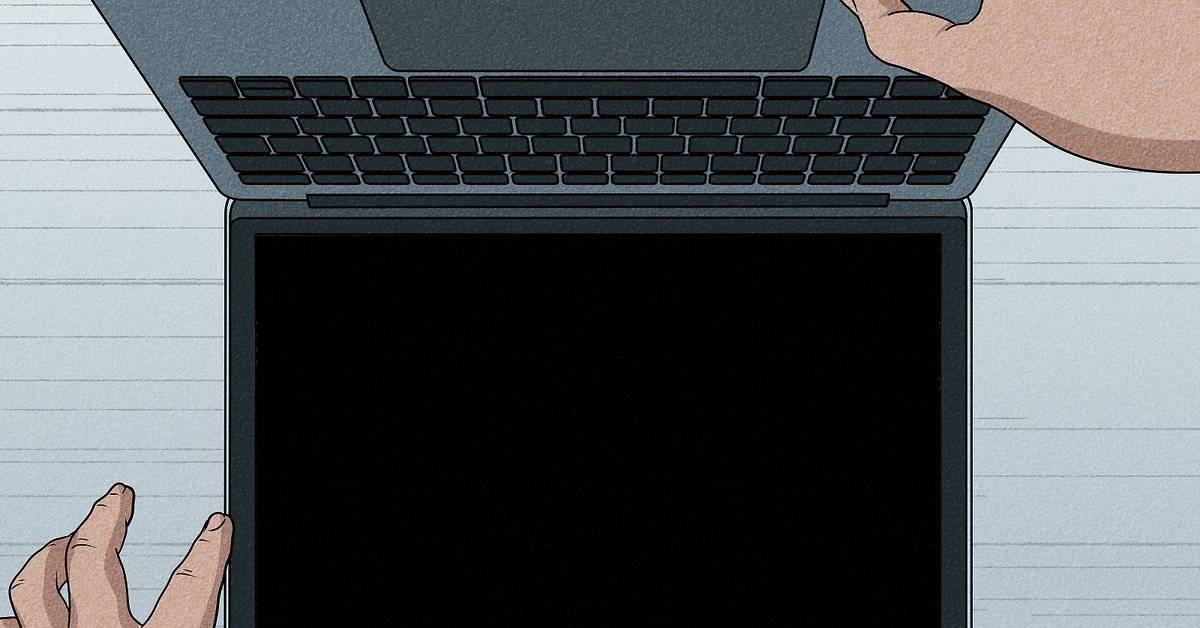
 Keeping your MacBook display clean is essential for both visual clarity and long-term device health, yet many users unknowingly damage their screens during routine cleaning. This guide explains how to clean MacBook screen properly, highlighting safe techniques, common mistakes, and professional best practices. It addresses issues like streaks and smudges that appear worse after cleaning with water and microfiber cloths, explaining why this happens and how to fix it. You’ll learn the correct tools, step-by-step cleaning methods, and maintenance habits to preserve your screen’s quality. By following these guidelines, you can safely restore a clear, streak-free display while avoiding damage to the delicate coating and internal layers of your MacBook screen.
Understanding the Importance of Proper Screen Cleaning
A MacBook screen is not just a glass panel—it’s a carefully engineered surface with anti-reflective and oleophobic coatings designed to reduce glare and fingerprints. When users attempt to clean it without understanding these layers, they can unintentionally degrade the display quality.
Improper cleaning can lead to:
- Permanent streaking or hazy patches
- Damage to the anti-reflective coating
- Smudging that looks worse than before cleaning
- Reduced screen clarity and brightness
Apple designs MacBook displays with a thin protective coating that is sensitive to harsh chemicals, excess moisture, and abrasive materials. When this coating begins to wear down, it creates uneven light reflection, making the screen appear cloudy or blotchy.
Understanding the correct cleaning approach is not just about aesthetics—it directly impacts the lifespan of your device. A properly maintained screen retains its clarity, resale value, and viewing comfort.
This section establishes a key principle: cleaning a MacBook screen is a precise process, not a casual wipe-down. Using the wrong technique, even once, can create long-lasting damage. Therefore, learning the correct approach ensures your screen remains in optimal condition for years.
Common Mistakes That Make Your Screen Look Worse
Many users face the exact problem described: after cleaning with water and a microfiber cloth, the screen looks 20x worse. This usually happens due to simple but critical mistakes.
Common mistakes include:
- Using too much water or liquid
- Applying pressure while wiping
- Using dirty or rough microfiber cloths
- Cleaning while the screen is hot or turned on
- Using household cleaners or alcohol-based sprays
When water is applied excessively, it can seep into tiny edges of the display and leave behind mineral residue as it dries. This residue appears as streaks or cloudy patches. Additionally, pressing too hard spreads oils and debris instead of removing them.
Another major issue is using a dirty microfiber cloth. Over time, these cloths trap dust and particles that can scratch or smear the coating. Instead of cleaning, you are essentially dragging dirt across the screen.
Heat also plays a role. Cleaning a warm screen causes moisture to evaporate too quickly, leaving uneven streaks. This is often why the display looks worse after cleaning.
Understanding these mistakes helps you correct your approach. The key takeaway is simple: less liquid, no pressure, and the right materials are essential when learning how to clean MacBook screen properly.
Essential Tools for Safe Cleaning
Using the right tools is critical to achieving a streak-free and safe clean. Apple recommends using specific materials that protect the delicate display surface.
Recommended tools:
- Microfiber cloth (clean and lint-free)
- Distilled water (not tap water)
- Screen-safe cleaner (optional and alcohol-free)
- Soft, dry brush or air blower (for dust removal)
A microfiber cloth is essential because it traps dust and oils without scratching the screen. However, it must be clean—using a contaminated cloth can worsen smudges.
Distilled water is preferred over tap water because it does not contain minerals that can leave residue. Tap water often causes streaks due to calcium and other deposits.
Screen-safe cleaners are optional but useful for removing stubborn fingerprints. However, they must be specifically designed for electronics. Avoid ammonia, alcohol, or bleach-based products as they can strip the protective coating.
Before using any tool, always ensure:
- The MacBook is powered off
- The screen is cool to the touch
- You are working in a clean, dust-free environment
Using the right tools ensures a safe and effective cleaning process while preserving the display quality.
Step-by-Step Guide: How to Clean MacBook Screen Properly
Now that you understand the tools, follow this step-by-step method for safe cleaning.
Step 1: Power off your MacBook
Turn off the device completely and unplug all accessories. This prevents electrical risks and makes smudges more visible.
Step 2: Use a dry microfiber cloth first
Gently wipe the screen in a circular or side-to-side motion to remove loose dust and particles. Avoid pressure.
Step 3: Lightly dampen the cloth
If needed, slightly dampen the microfiber cloth with distilled water. Do not spray liquid directly on the screen.
Step 4: Gently wipe the screen
Using light pressure, clean the screen in smooth, even strokes. Focus on areas with visible fingerprints or smudges.
Step 5: Dry with a clean microfiber cloth
Immediately follow with a dry cloth to remove any moisture and prevent streaking.
Step 6: Inspect under light
Check your screen under different lighting conditions to ensure there are no streaks or residue left behind.
Key reminders:
- Never soak the cloth
- Avoid circular scrubbing with force
- Do not let liquid drip into edges
This method ensures a clean, streak-free display without risking damage to your device.
Why Your Screen Looks Worse After Cleaning
If your screen looks worse after cleaning, you’re likely dealing with one of the following issues:
- Residue from minerals in water
- Streaks from uneven drying
- Damaged anti-reflective coating
- Oil smearing instead of removal
When water dries unevenly, it leaves behind streaks that reflect light differently. This makes the screen appear cloudy or dirty even when it’s technically clean.
Another common issue is coating damage. If you used harsh chemicals or applied too much pressure, the anti-reflective coating may have been partially removed. This results in blotchy or patchy areas that cannot be cleaned away.
To fix this issue:
- Clean again using only distilled water and a fresh microfiber cloth
- Use minimal moisture
- Avoid re-wiping already cleaned areas repeatedly
If the coating is damaged, cleaning alone cannot fully restore the screen. In such cases, the damage is permanent, and professional repair may be required.
Understanding this helps you avoid repeating the same mistake and ensures better results in future cleanings.
What NOT to Do When Cleaning Your MacBook Screen
Avoiding harmful practices is just as important as following the correct method. Many common cleaning habits can permanently damage your screen.
Never:
- Use paper towels or tissues (they scratch the surface)
- Spray liquid directly onto the screen
- Use window cleaners or household chemicals
- Apply excessive pressure while wiping
- Use dirty or reused cloths
- Clean the screen while it’s plugged in or powered on
Paper towels may seem harmless, but they contain fibers that can create micro-scratches. Over time, these scratches accumulate and affect screen clarity.
Household cleaners often contain ammonia or alcohol, which can degrade the screen coating. Once this coating is damaged, it cannot be restored.
Pressure is another major issue. Pressing too hard can damage the LCD layer beneath the glass, leading to discoloration or permanent marks.
Following these rules is essential when learning how to clean MacBook screen safely. Prevention is always better than repair.
Maintenance Tips for a Cleaner Screen
Keeping your MacBook screen clean is easier when you adopt good maintenance habits. Instead of deep cleaning frequently, focus on preventing dirt buildup.
Best practices:
- Clean your hands before using your MacBook
- Avoid eating or drinking near your device
- Close the lid when not in use to prevent dust accumulation
- Use a protective keyboard cover to prevent smudges on the screen
- Store your device in a clean, dust-free environment
Cleaning schedule:
- Light dusting: once a week
- Full cleaning: every 2–4 weeks
- Deep cleaning: only when necessary
By maintaining these habits, you reduce the need for frequent cleaning and minimize the risk of damage.
Consistency is key. A little care each day can significantly extend the lifespan and clarity of your MacBook screen.
Troubleshooting: Fixing a Screen That Looks Worse After Cleaning
If your screen already looks worse, don’t panic. There are still steps you can take to improve its appearance.
Try this method:
- Use a completely dry microfiber cloth
- Gently buff the screen in one direction
- If needed, slightly dampen the cloth with distilled water
- Repeat with a dry cloth to remove any residue
If streaks persist:
- Check if the cloth is clean
- Ensure you are not over-wetting the surface
- Avoid repeated wiping of the same spot
When the issue is permanent:
- If patches remain no matter what, the coating may be damaged
- In this case, cleaning cannot fix the issue
- You may need professional servicing or screen replacement
The key is to avoid making the situation worse. Over-cleaning or aggressive wiping can cause more damage.
Conclusion
Learning how to clean MacBook screen properly is essential for maintaining your device’s performance and visual quality. Many users accidentally damage their screens by using too much water, applying pressure, or using the wrong materials. These mistakes often lead to streaks, smudges, or even permanent coating damage.
The correct approach involves using a clean microfiber cloth, minimal distilled water, and gentle wiping techniques. Avoiding harsh chemicals and excessive pressure ensures that your screen remains clear and undamaged.
By following proper cleaning steps and adopting good maintenance habits, you can keep your MacBook screen looking sharp and streak-free for years. Understanding both what to do and what to avoid is the key to preserving your device’s display quality and overall value.
Taking a careful, informed approach ensures that your screen stays as clean as the day you bought your MacBook—without the frustration of making it look worse after cleaning.