
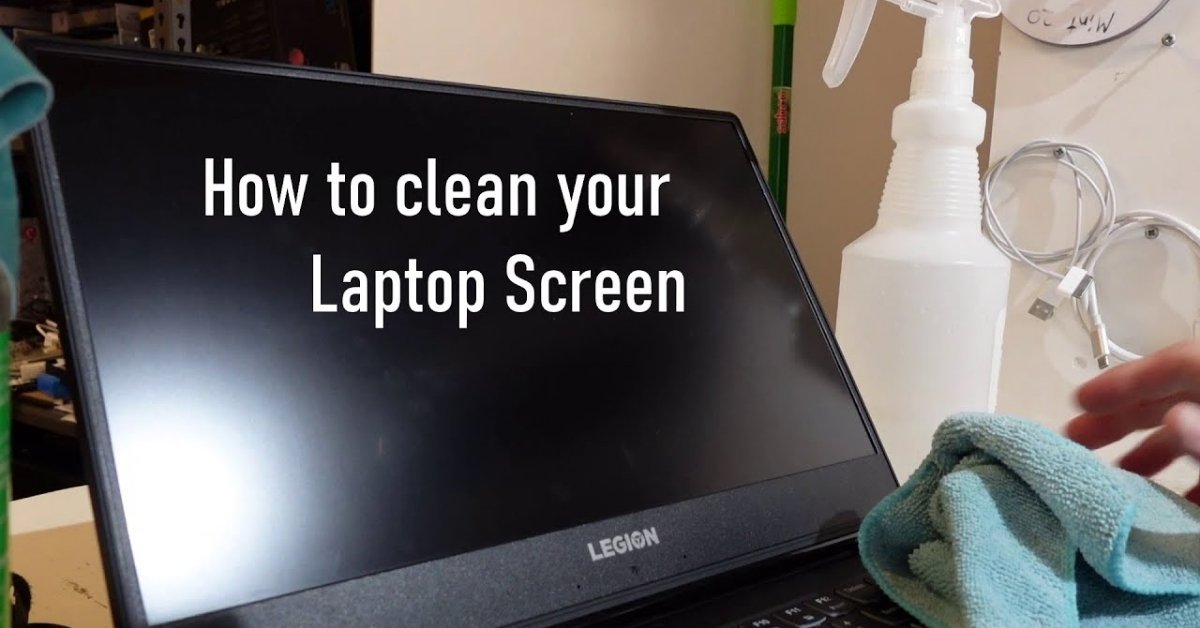
A clean laptop screen is essential not only for visual clarity but also for maintaining the longevity of your device. In this comprehensive guide on how to clean laptop screen, you’ll learn the safest and most effective methods to remove dust, fingerprints, and stubborn stains without causing damage. We’ll cover how often you should clean your screen, what materials to avoid, and the essential tools you need. Step-by-step instructions will guide you through the proper cleaning process, ensuring streak-free results. You’ll also discover practical tips to keep your screen clean for longer. Whether you’re a student, professional, or casual user, this guide simplifies the process while protecting your investment.
How Often To Clean A Laptop Screen
Cleaning your laptop screen regularly is important for both hygiene and display quality. However, how often you clean it depends largely on how you use your device. A laptop used daily for work or study will accumulate dust, fingerprints, and smudges much faster than one used occasionally.
For most users, a light cleaning once a week is enough to maintain clarity. If you frequently touch your screen, eat near your laptop, or work in dusty environments, you may need to clean it every two to three days. On the other hand, deep cleaning involving stain removal can be done once or twice a month.
Here are general guidelines to follow:
- Daily users: Light wipe every 3–5 days
- Heavy users (touchscreen or shared devices): Every 2–3 days
- Occasional users: Once every 1–2 weeks
- Deep cleaning: Monthly
Regular cleaning not only improves visibility but also prevents buildup that can be harder to remove later. It also reduces the spread of germs, especially if your laptop is shared or used in public spaces.
Maintaining a consistent cleaning routine helps extend the life of your screen coating, ensuring it remains bright and clear over time.
What Not To Use On Your Laptop Screen
When learning how to clean a laptop screen, understanding what not to use is just as important as knowing the right method. Laptop screens are delicate and often coated with anti-glare or protective layers that can be damaged easily.
Avoid using the following items:
- Paper towels or tissues: These may feel soft but can scratch the screen due to their rough fibers
- Household cleaners: Products like glass cleaners, bleach, or ammonia-based sprays can strip protective coatings
- Excess water: Applying too much liquid can cause moisture to seep into internal components
- Alcohol-based solutions (in high concentration): These can damage screen coatings over time
- Rough cloths or clothing: Fabrics like denim or synthetic materials may leave scratches
Instead of these harmful materials, always opt for microfiber cloths and screen-safe cleaning solutions. These are specifically designed to clean delicate surfaces without causing damage.
Using the wrong cleaning tools can lead to permanent marks, discoloration, or reduced screen sensitivity, especially for touchscreens. Taking a cautious approach ensures your laptop remains in excellent condition.
What You Need
Before starting the cleaning process, it’s important to gather the right tools. Using proper materials ensures safe and effective cleaning without risking damage.
Here’s a list of essential items you’ll need:
- Microfiber cloth: This is the safest option for wiping screens without scratching
- Distilled water: Free from minerals, it prevents streaks and residue
- Screen-safe cleaning solution: Specifically designed for electronics
- Spray bottle (optional): For controlled application of liquid
- Soft brush or air blower: Helps remove dust particles
Below is a simple table to help you understand the purpose of each item:
| Item | Purpose |
| Microfiber cloth | Gently wipes without scratching |
| Distilled water | Cleans without leaving residue |
| Screen cleaner solution | Removes oils and stubborn stains |
| Spray bottle | Controls liquid application |
| Air blower/soft brush | Removes loose dust particles |
Each of these tools plays a role in ensuring a safe and streak-free cleaning process. Avoid improvising with household items, as they may cause unintended damage.
Related Stories
Understanding how to clean a laptop screen connects to broader topics in device care and maintenance. These related areas help you develop a more complete approach to keeping your electronics in top condition.
Some closely related topics include:
- Keyboard cleaning techniques: Keyboards collect dirt and bacteria quickly, making regular cleaning essential
- Laptop maintenance tips: Includes battery care, software updates, and hardware cleaning
- Screen protection methods: Using screen protectors or covers to prevent damage
- Workspace hygiene: Keeping your desk clean reduces dust exposure
Exploring these topics can help you build better habits and extend the lifespan of your laptop. For example, maintaining a clean workspace reduces how often your screen gets dirty. Similarly, cleaning your keyboard prevents transferring oils and dirt back onto the screen.
By understanding these connections, you can take a more proactive approach to device care, rather than reacting only when your screen becomes visibly dirty.
How To Clean A Laptop Screen
Cleaning your laptop screen properly requires a careful and methodical approach. Rushing the process or using incorrect techniques can lead to scratches or damage.
Before starting, always turn off your laptop and unplug it. This not only improves visibility of smudges but also ensures safety.
The cleaning process involves four key steps:
- Dust removal
- Surface wiping
- Stain and fingerprint removal
- Drying
Each step builds on the previous one to ensure a thorough clean without harming the screen.
It’s important to avoid spraying any liquid directly onto the screen. Instead, apply it to your cloth first. This prevents excess moisture from entering the device.
Following a structured approach ensures consistent results. Whether you’re doing a quick clean or removing stubborn marks, these steps provide a reliable method.
Let’s break down each step in detail.
Step 1: Dust The Screen
The first step in cleaning your laptop screen is removing loose dust and debris. Skipping this step can lead to scratches when wiping the screen later.
Use a soft microfiber cloth or an air blower to gently remove dust particles. Start from the top of the screen and work your way down in light, sweeping motions.
Key tips for dusting:
- Use minimal pressure to avoid pushing dust into the screen
- Avoid circular motions at this stage
- Never use compressed air too closely, as it may damage components
Dust particles may seem harmless, but they can act like tiny abrasives. Removing them first ensures the next steps are safe and effective.
This step is quick but essential, setting the foundation for a proper cleaning process.
Step 2: Wipe The Screen
Once the dust is removed, the next step is wiping the screen to eliminate light smudges and surface dirt.
Lightly dampen your microfiber cloth with distilled water or a screen-safe cleaning solution. The cloth should be slightly moist, not wet.
Use gentle, even strokes to wipe the screen. You can move:
- Horizontally (side to side)
- Vertically (top to bottom)
Avoid applying pressure, as laptop screens are sensitive and can be damaged easily.
Important points to remember:
- Never spray liquid directly onto the screen
- Use a clean section of the cloth to prevent spreading dirt
- Keep your movements consistent to avoid streaks
This step removes most visible marks and prepares the screen for deeper cleaning if needed.
Step 3: Remove Fingerprints And Stains
Fingerprints and stubborn stains often require extra attention. These marks are usually caused by natural oils from your skin.
To remove them effectively:
- Apply a small amount of screen cleaner to your microfiber cloth
- Gently rub the affected area in small circular motions
- Repeat if necessary using a clean part of the cloth
Avoid scrubbing aggressively, as this can damage the screen coating.
For tougher stains, patience is key. Multiple gentle passes are safer than applying force.
This step ensures your screen looks clear and professional, free from distracting marks.
Step 4: Allow To Dry
After cleaning, it’s important to let the screen dry completely before turning your laptop back on.
Drying tips:
- Allow the screen to air dry naturally
- Avoid using heat sources like hair dryers
- Check for any remaining streaks and gently wipe if needed
Most screens dry within a few minutes if only a small amount of liquid was used.
Ensuring the screen is completely dry prevents moisture-related damage and leaves a clean, streak-free finish.
Tips For Keeping A Laptop Screen Clean
Maintaining a clean laptop screen doesn’t require constant effort if you follow a few simple habits. Preventive care reduces the need for frequent deep cleaning.
Here are some practical tips:
- Avoid touching the screen: This is the most common cause of fingerprints
- Wash your hands regularly: Reduces oil transfer
- Keep food and drinks away: Prevents spills and grease marks
- Close the lid when not in use: Protects from dust
- Use a screen protector: Adds an extra layer of protection
- Clean your keyboard regularly: Prevents dirt transfer
You can also create a simple routine:
- Quick wipe every few days
- Weekly inspection for smudges
- Monthly deep clean
These habits help maintain screen clarity and extend its lifespan.